
As titled, vvdishop.com here shows how to activate and update the Xhorse Condor XC-TWINS key cutting machine.
Activate Xhorse XC-TWINS:
1).Plug in the power cord, power on the machine, and click on “START TO SET”.

2).Click to select a WiFi network.

3). Enter the password and on click on “Connect”. After the connection is successful, click on “Next” at the bottom.

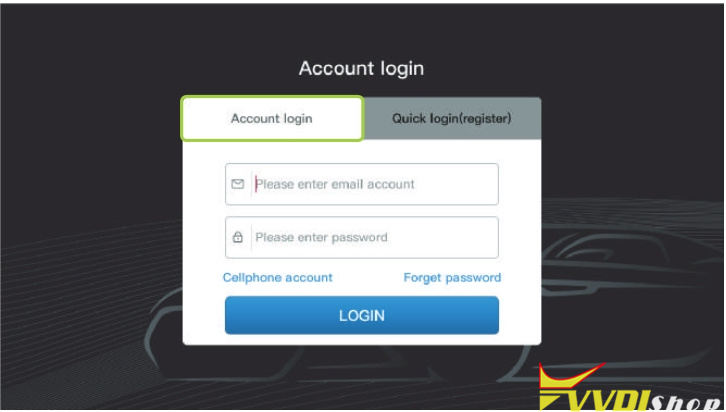
4).Users can choose to log in with an account or use quick login (new users need to select quick login and register).


5). After successful login, click to send the verification code to bind the device.

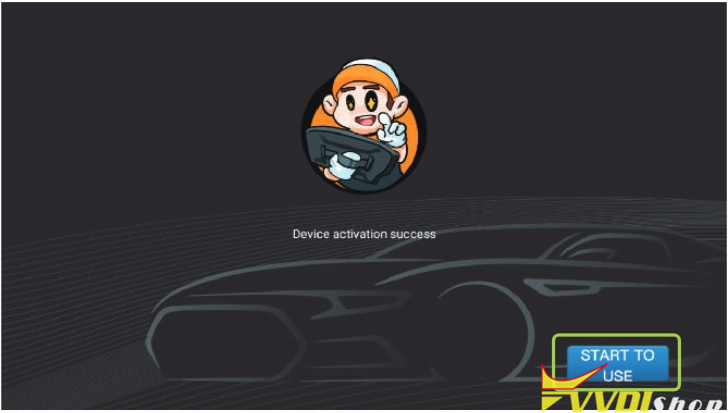
6). Once the device is successfully activated, click “START TO USE”.

Update Xhorse XC-TWINS:
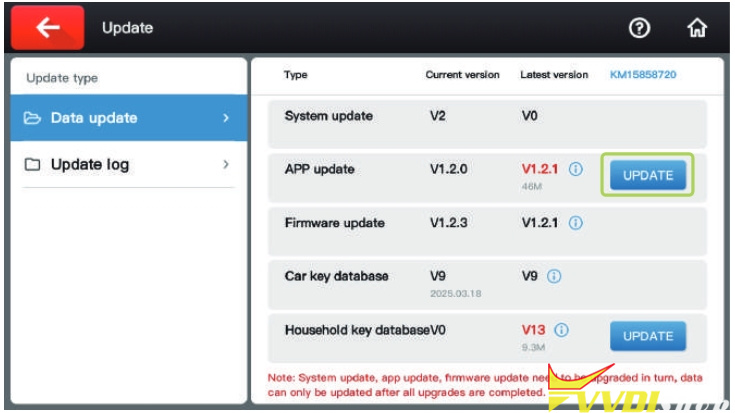
1). After the device is connected to the Internet, click on “Update” in the upper right corner of the main page.

2). Click the “UPDATE” button on the right side to update.


No comments:
Post a Comment
Note: Only a member of this blog may post a comment.