8/29/2019

How to find key biting in Dolphin XP005?

How to find biting in Xhorse Condor Dolphin XP005 key cutting machine?
Parts of the cars are missing biting on door lock/trunk lock if compare with ignition lock. Users can find out the unknown biting and replace the unknown biting as  “?”
find-biting-1

find-biting-2
1) Click on “Find biting”
2) Select a car maker
3) Select or put in the key blank type
4) Put in the known biting and replace unknown bitting as “?”. Then click on “Find Biting”

8/28/2019

How to use Dolphin XP005 to cut key by biting?

How to use Xhorse Condor Dolphin XP005 to cut key by biting?
Two ways of using the key bitting to make a key:
Method 1 :
Making a key without the original key.
1.Use some special tool to get the key bitting.
2.Break down the lock to read the key bitting on each metal of lock.
dolphin-xp005-cut-by-biting-1

dolphin-xp005-cut-by-biting-2
1) Click on “Cut by biting” on the main page
2) Select a key blank type
3) Select the ket type
4) Fix the key according to the picture show, select proper side of clamp and fix the key in correct position.
Put in the key bitting and check all the information before you click on “Cutting key” for make new key.

Method 2:
Making a key with the original key.
dolphin-xp005-cut-by-biting-3

dolphin-xp005-cut-by-biting-4
1) Click on “Cut by biting” and select a key blank type
2) Select the key type
3) Click on “Decode key” to duplicate key biting
4) Click on “Cutting Key”

8/27/2019

How to use Condor Dolphin XP005 key duplication?

How to use Condor Dolphin XP005 key duplication?
Car models and years are needed for key duplication
dolphin-xp005-key-duplication-1

dolphin-xp005-key-duplication-2

dolphin-xp005-key-duplication-3
1) Click on “Vehicle Database” on the main page
2) Select or type the car maker
3) Select the car model
4) Select the car model and year
5) Follow the tips on screen and correctly put the key on the clamp, click “Decode key”
6) After getting the original key bit, put an new blank key and click on “Cutting Key”

8/26/2019

How to use Condor Dolphin XP005 key database

How to use Xhorse Condor Dolphin XP005 key database?
Three ways to make keys from the key database
1. Original key code card from factory
2. Key code information on lock for some car models
3. Other ways to get the key code.
use-dolphin-xp005-key-database-1

use-dolphin-xp005-key-database-2

use-dolphin-xp005-key-database-3
1) Click on “All key lost”
2) Select a car maker
3) Put in the key code circled and click “QUERY”
4) Select the key series
5) The key bit will be automatically generate on the screen. Click “Cutting Key”

8/25/2019

How to Calibrate Cutting on Dolphin XP005?

Xhorse Condor Dolphin XP005 cutting calibration tips:
calibrate-cutting-1

calibrate-cutting-2

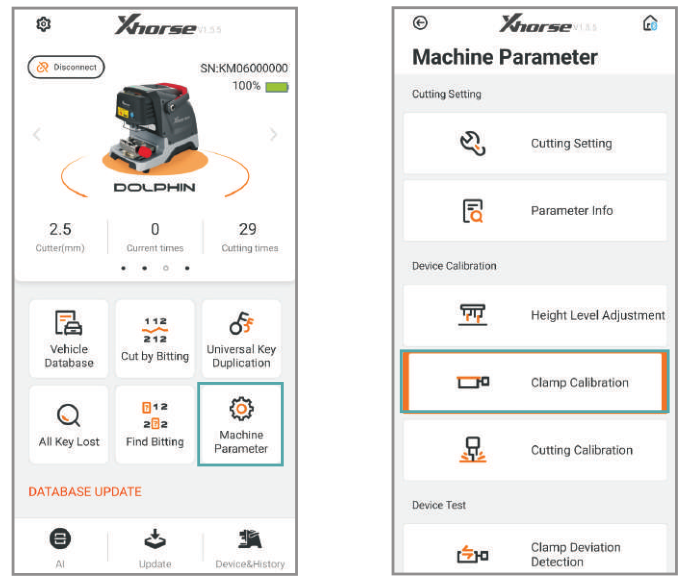
1) Enter the operation main interface and click on “Machine Parameter”
2) Click on “Cutting Calibration”
3) Operate by following the tips and click on “Start”
4) Clean the cutter, probe and working area with a brush. Click on “Continue” or finish cutting  calibration.

8/24/2019

How to Adjust Dolphin XP005 Headlight level ?

Xhorse Condor Dolphin XP005 Headlight level adjustment 
The system needs to initialize for first use. The steps as follows:
dolphin-xp005-adjust-height-level-1

dolphin-xp005-adjust-height-level-2

dolphin-xp005-adjust-height-level-3
1) Enter Dolphin XP-005 operation main interface and click on ‘Machine Parameter’.
2) Click on ‘Height Level Adjustment’.
3) Adjust the heights of cutter and probe by following the tips on the screen, then click on ‘Start’.
4) After the machine has stopped, adjust the points of probe and cutter to the same level by following the tips on the screen. Then click on ‘Continue’.
5)  After the machine has stopped, select the diameter of the installed cutter, click on ‘Setting cutter diameter’ for finish height level adjustment.

8/23/2019

How to install and calibrate Dolphin XP005 Clamp?

Xhorse Condor Dolphin XP005 comes with 2 clamps in default (M1, M2 clamp) and 2 options clamps (M3 and M4.)

Xhorse Dolphin Key Cutter Clamps
dolphin-xp005-clamps

M2 Clamp sided selection
m2-clamp


M4 Clamp instruction
m4-clamp

Install Clamp
install-dolphin-xp005-clamp
Installation steps:
  • Unscrew the clamp locking screw .
  • Choose the proper clamp for your keys, slide it in to the clamp holder and push it to the limit from right side.
  • Fix the clamp locking screw until the clamp is locked.

Clamp calibration
calibrate-dolphin-xp005-clamp-1

calibrate-dolphin-xp005-clamp-2

calibrate-dolphin-xp005-clamp-3
1) Enter Dolphin XP-005 operation main interface, click on ‘Machine Parameter’.
2) Click on ‘Clamp Calibration’.
3) Select clamp M1.
4) Following the tips on the screen, put HON66 key blank, click on ‘Start’ and wait until it is finished.
5) Select clamp M2, select the side A and do not place any key on the clamp, click on’ Start’.

6) Follow the tips on the screen and change to other B, C, D sides for finish calibration.